Help Center & User Guides
Everything you need to sync live CRM records, map custom spreadsheets, and master daily engagement check-in workflows.
Daily Anubandha Workflows (Today Screen)
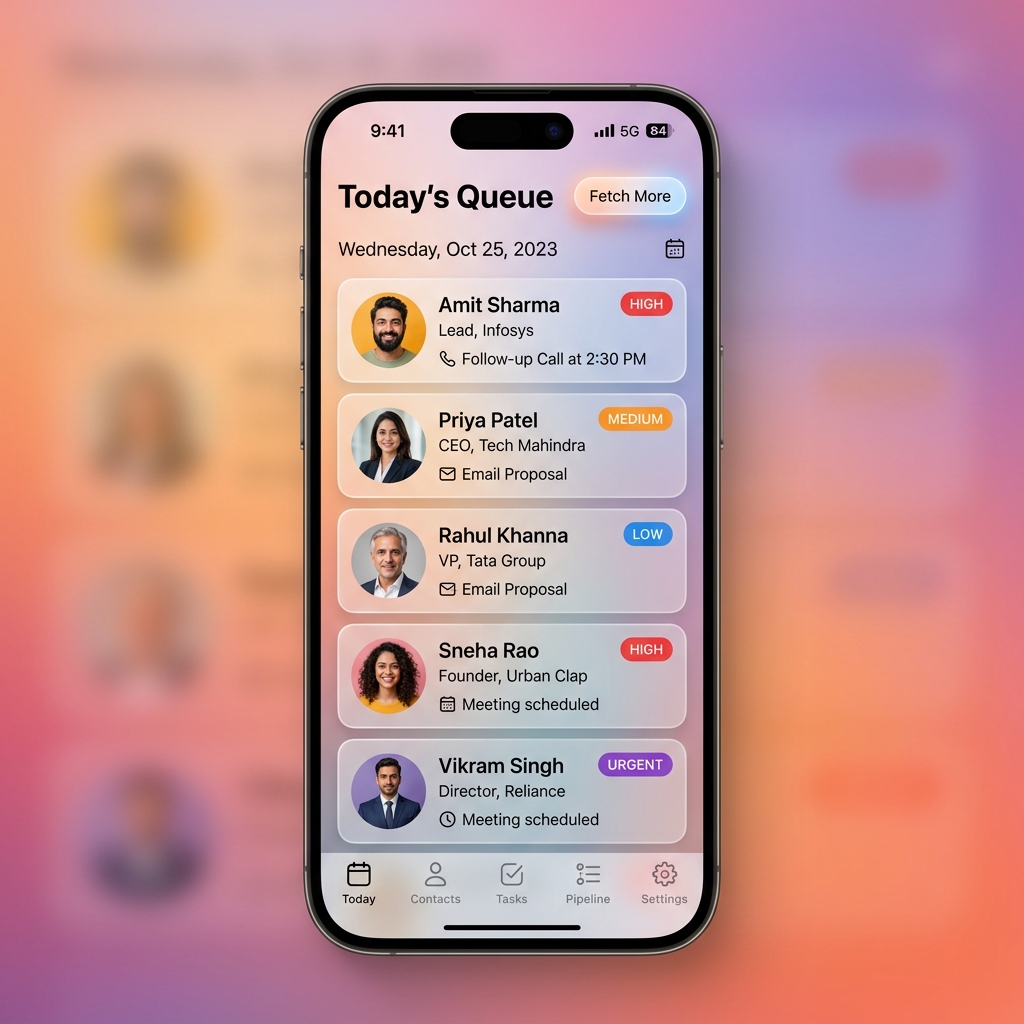
The Today view serves as your primary operations center, managing daily engagement targets proactively.
- Anubandha Queue: Displays a curated list of high-priority check-in targets queued for the current day.
- Fetching Batches: If your immediate queue is cleared, tap Fetch More to automatically query the backend database for additional pending contacts based on your configured batch limits.
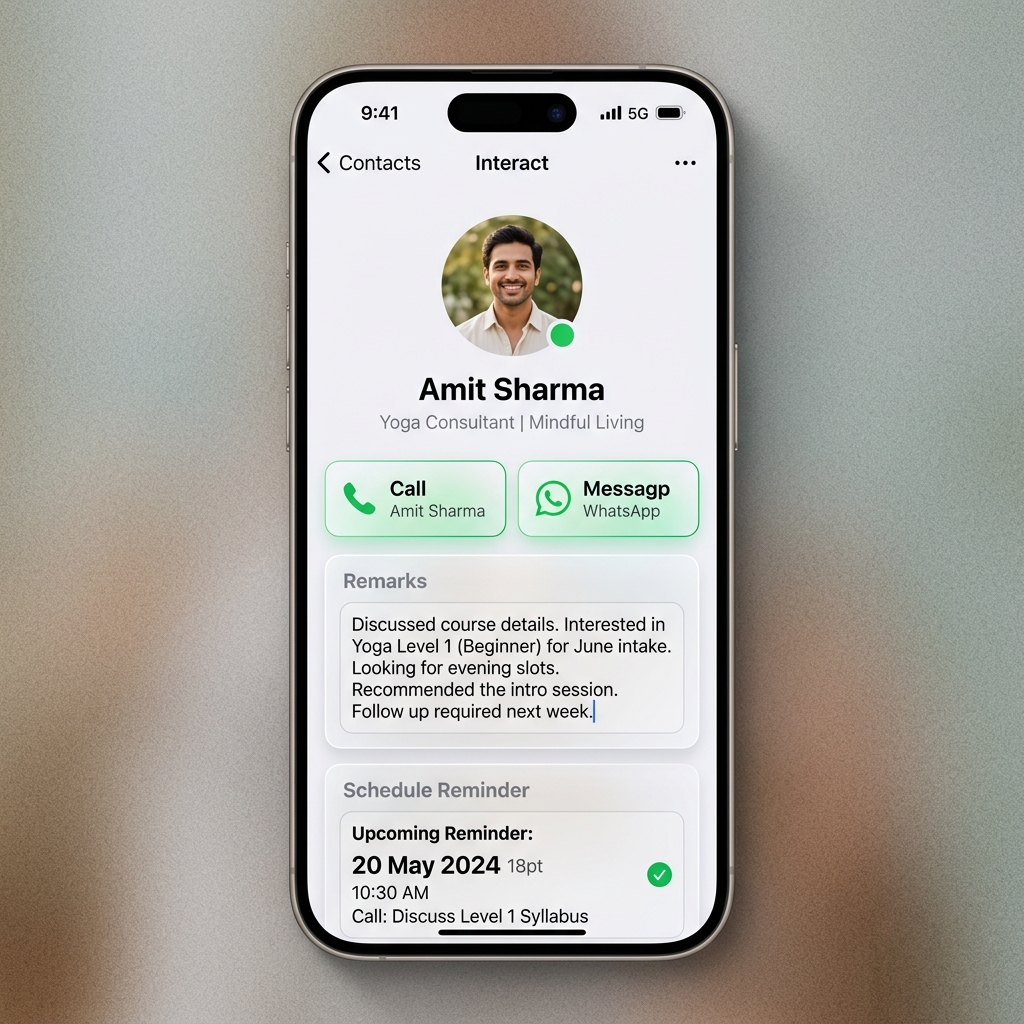
- Direct Engagement: Tap any individual target card to launch the interaction dashboard. From here, you can instantly place calls, send SMS messages, launch WhatsApp communications, or compose emails.
- Logging Outcomes: Set concrete interaction outcomes (e.g., Interested, Ringing, Call Back Later) and enter detailed descriptive notes. Saving updates automatically records a timestamped history log and reschedules the contact's future review date.
- Hands-Free Voice Dictation (Speech-to-Text): Log interaction remarks without typing. Tap the microphone icon next to the remarks field to dictate notes. Dictation is transcribed in real-time, completely locally and privately on-device.
- Sleek HIG Gestures (Swipe & Long-Press): Fully aligned with Apple iOS Human Interface Guidelines (HIG) and Android Material Design, the Today queue and contact list support fast gestures. Swipe right (or slide) on any contact to reveal quick-action shortcuts (like instant Call, Message, or WhatsApp). Long-press any card or contact row to open a tactile, haptic-enabled context menu, enabling you to log check-in outcomes, assign tags, or adjust DND preferences instantly without leaving the screen.
Managing Courses & Filtering
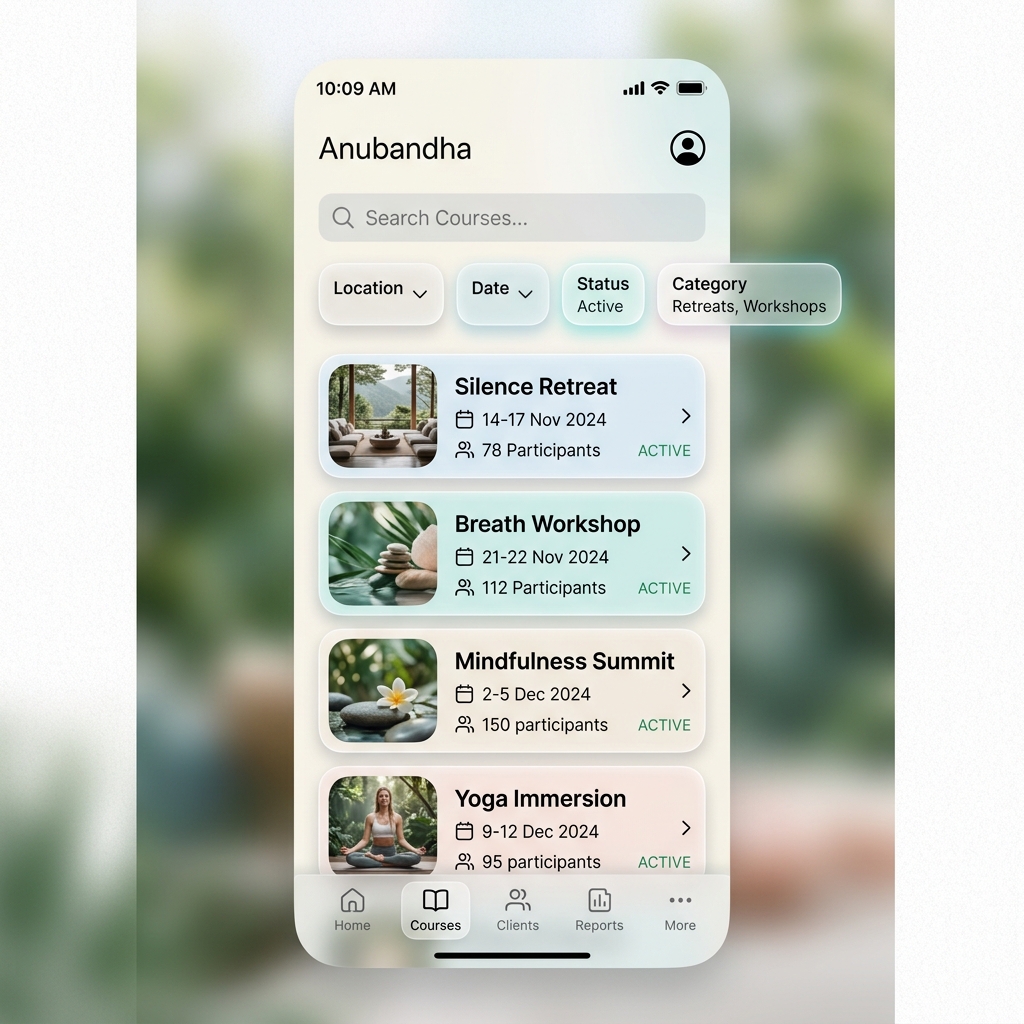
The Courses screen consolidates event coordination, participant tracking, and programmatic insights.
- Manual Creation: Tap the + icon in the navigation bar to configure a new course manually. Enter custom program identifiers, instruction types, target dates, and specific venue locations.
- Event Insights: Lists all configured instructional programs alongside associated dates, target location parameters, and total registration statistics.
- Advanced Filtering & Sorting: Use the permanent tools at the top of the screen for granular
search and organization:
- Location-Based Filtering: Narrow down your list by specific City or State. The pickers automatically show all unique locations currently in your database.
- Date Range Querying: Set custom From and To dates to see only courses starting within a specific window.
- Multi-Criteria Search: Search for specific program codes or types, and sort dynamically by start dates (Ascending/Descending) or participant volume.
- Export to Address Book: Within the Course Details view, you can export all registered participants as a standard contact card bundle (.vcf). This allows you to bulk-import the participants directly into your phone's native address book. By default, the Course Type and Start Date are set as the Organization (ORG) name for each contact, ensuring they are automatically grouped and searchable in your device's contacts app.
Contact Management & Filtering
The Contacts screen provides comprehensive direct database access with robust administrative categorization.
- Manual Creation: Tap the + icon in the navigation bar to create a standalone contact record manually. Provide credentials including name, phone number, and optional email address, and configure custom Do Not Disturb (DND) settings to exclude the record from default check-in queues.
- Native Share Integration: Seamlessly ingest contacts from external sources using native OS share extensions. Sharing contact cards (vCards) or text selections from third-party address books, messaging clients, or web browsers directly into Anubandha instantly populates the Add Contact interface with extracted credentials.
- Advanced Location Filtering: Quickly isolate regional contact groups by filtering the list by City, State, or Country.
- Multi-Tag Filters: Apply combined filtering criteria across custom user tags. Selecting multiple tags enforces granular AND logic, returning precisely the subset of contacts assigned to all chosen markers simultaneously.
- Quick Reset: Tap the magnifying lens icon at any time to instantly clear all active filters and search queries.
- Tag Lifecycles: Tap Manage Tags inside Settings to rename tags application-wide, delete unused identifiers, or reassign associated contact records seamlessly to alternative categories.
- Tactile Gesture Navigation: Perform common workflows quickly by swiping or long-pressing contact records directly in the search lists. Swipe to reveal immediate communication triggers, or long-press for a comprehensive shortcut panel to edit, delete, or log details on the fly.
Contact Merging & Multi-Select
To keep your address book clean and perform bulk operations efficiently, Anubandha features a powerful Multi-Select mode and interactive Contact Merging tool:
- Activating Multi-Select Mode: In the main contact list, long-press on any contact card to enter selection mode. Checkbox overlays will appear, letting you tap to select multiple contacts. A floating bar at the bottom displays the count of selected contacts and available bulk actions.
- Bulk Actions: With multiple contacts selected, you can perform:
- Bulk Tag Assignment: Select one or more tags to apply to all chosen contacts simultaneously.
- Bulk Delete: Remove multiple contact records and their histories at once (requires confirmation haptic).
- Contact Merging: Consolidate duplicate records. Tapping the merge button opens the interactive Contact Merge Screen.
- Resolving Field Conflicts: During a merge, the system displays conflicting fields side-by-side (such as differing phone numbers, emails, or cities). You can select exactly which values to keep in the final master contact profile. Miscellaneous details are deep-merged automatically.
- Relational Consolidation: When merged, the master contact record inherits all historical course registrations, tags, and interaction logs. The duplicate records are then permanently erased.
Sangha (Team Follow-Up Coordination)
The Sangha feature allows team coordinators to organize contacts into follow-up batches and coordinate assignments across team members completely offline.
- Creating a Distribution List: Tap the Options menu (ellipsis icon) on the People tab and select Add to Sangha. Provide a name and optional description to initialize the batch.
- Allocating Contacts: Automatically distribute contacts equally among your added team members with a single tap, or manually adjust allocations by dragging counts on team member rows.
- Sharing Assignments Offline: Swipe right on any team member row to compile their assigned contacts into a proprietary
.aefcoordination file. This automatically copies the data to your clipboard and opens a share sheet to launch WhatsApp or Email with instructions pointing team members to the team member guide. - Assignment Import: Team members copy the received data payload and paste it directly into their Anubandha app to import their assigned checklist without any server interaction.
- Removing Team Members: Swipe left on a team member row to remove them and return their remaining contacts back to the pool for reallocation.
Premium UI & Accessibility Enhancements
Anubandha is built for a quiet, fluid mobile experience that respects your attention and ease of use:
- Premium Dark Mode: A sleek, tailored dark color scheme reduces eye strain and provides a high-contrast, premium aesthetic during nighttime outreach.
- Optimized Hit Targets: Filter tag chips and selectors feature enlarged tap targets, complying with accessibility guidelines to ensure easy, error-free navigation on mobile touch screens.
- Consistent Navigation Layouts: Bottom navigation tabs and detail sheets enforce layout consistency, ensuring predictable transitions and muscle memory.
Manual Registration Lifecycle
Connecting contacts to instructional programs is streamlined using context-aware registration associations.
- Contextual Triggers: Tap the + icon within any Course Detail view or Contact Detail view to launch the dedicated Add Registration workflow.
- Auto-Complete Searching: Search dynamically for target courses or contacts using real-time auto-complete search inputs.
- Deduplication Safeguards: Strict system rules prevent duplicate enrollments, warning you immediately if a target contact is already associated with the selected program.